
Service covered by this article: web hosting.
Summary: Backuply gives you access to your account's backups: in a few clicks you can restore a full backup or just the files, a database, email accounts, domains, cron jobs or FTP accounts.
What is this tool for?
- Going back to yesterday's version after a mistake or a hack.
- Restoring a single file, a single database or a single mailbox.
- Creating your own backup tasks to external storage.
Where to find it in cPanel
Log in to cPanel (see How to access my cPanel panel), then, in the "Software" section, click "Backuply" 1. Tip: you can also type its name in the Search Tools bar at the top of cPanel.
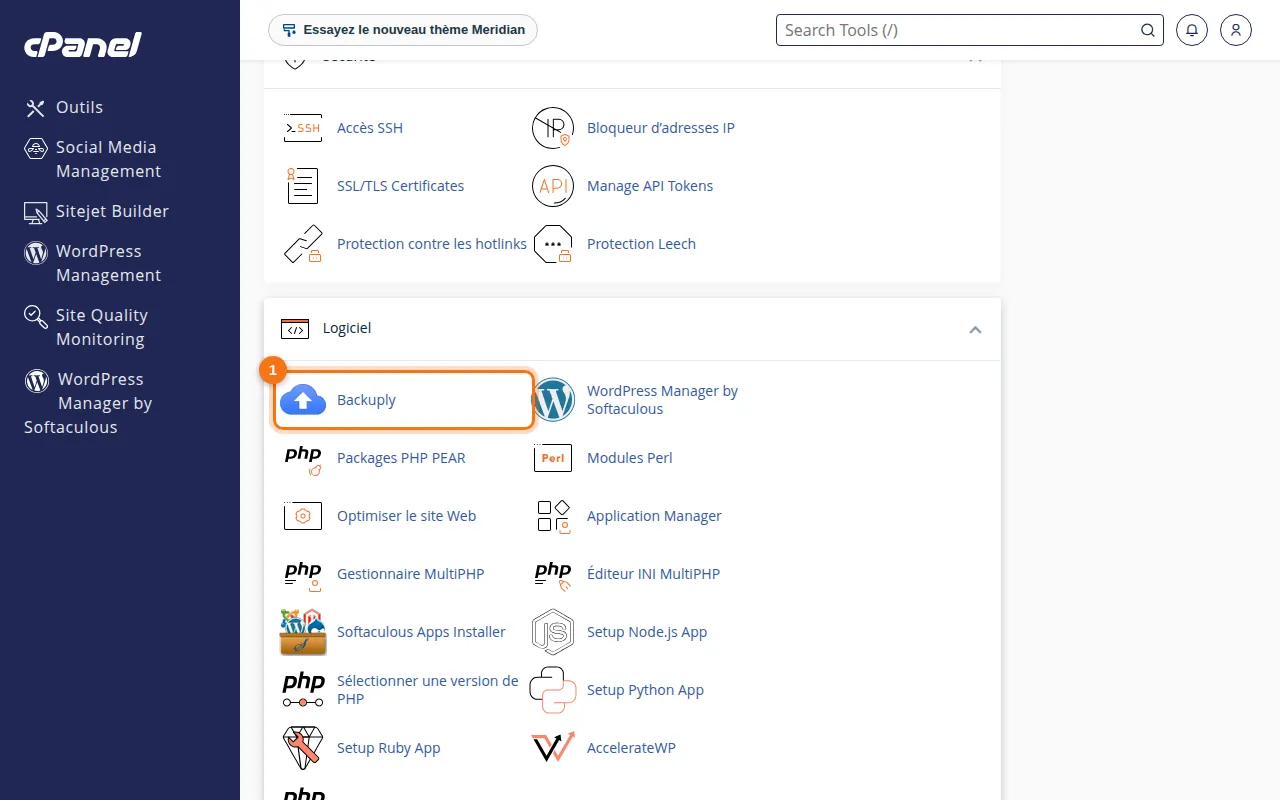 The "Backuply" tool in the Software section.
Step by step
- The home page shows your account, your main domain and the number of backups available.
- In Restore & Download, choose what you want to restore: Full Backups, Home Directory, Database, Email Accounts, Domains, Cron Jobs or FTP Accounts.
- Select the backup date, then the specific items, and start the restore (or the download).
- The Backup section lets you add your own backup tasks and destination servers.
- Follow the progress in View & Manage → Logs.
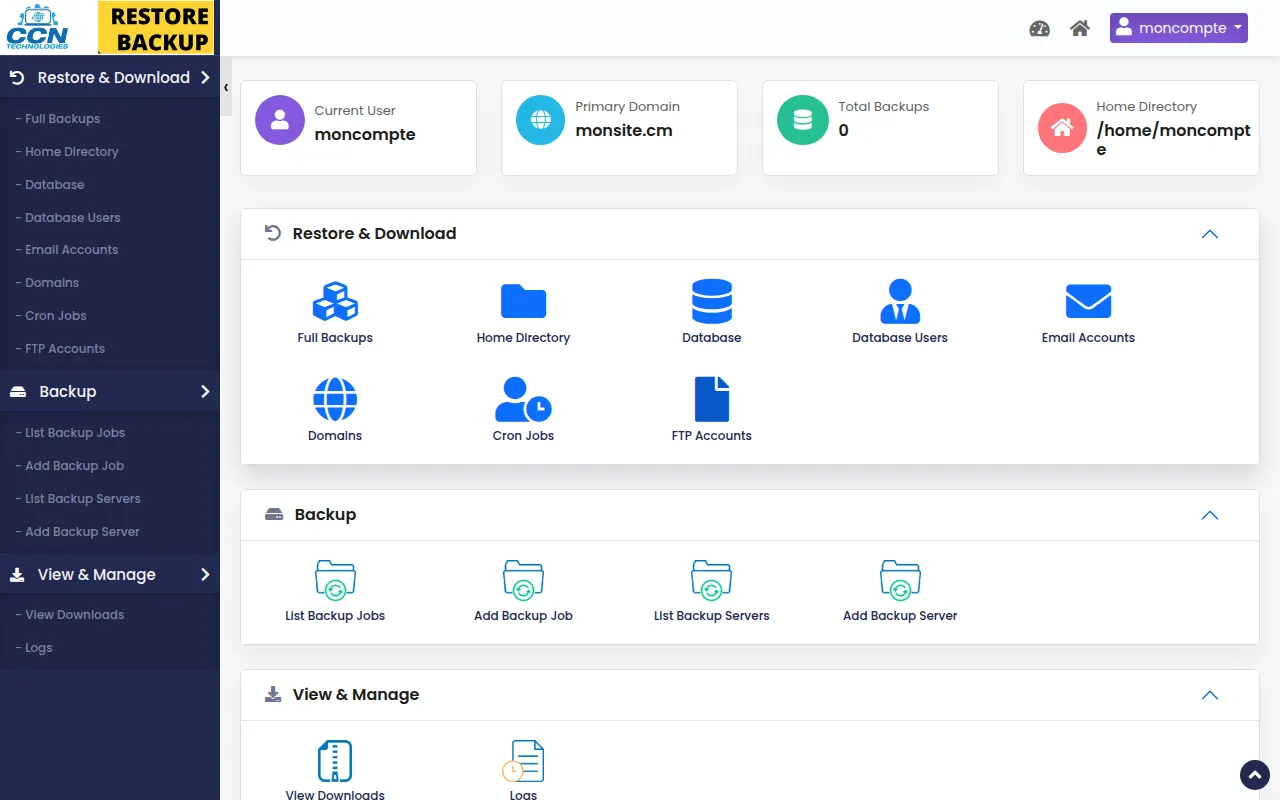 The Backuply dashboard and the restore types.
Best practices
- Prefer a targeted restore (one folder, one database) over a full restore, which overwrites everything.
- Download a copy before restoring, so you can roll back.
