
Service covered by this article: web hosting.
Summary: The Backup tool creates a full backup of your account, or partial backups (home directory, database, forwarders, email filters), which you can download and restore.
What is this tool for?
- Keeping a copy of your site on your computer before a major change.
- Restoring a database or your files from a partial backup.
Where to find it in cPanel
Log in to cPanel (see How to access my cPanel control panel), then, in the "Files" section, click "Backup" 1. Tip: you can also type its name in the Search Tools bar at the top of cPanel.
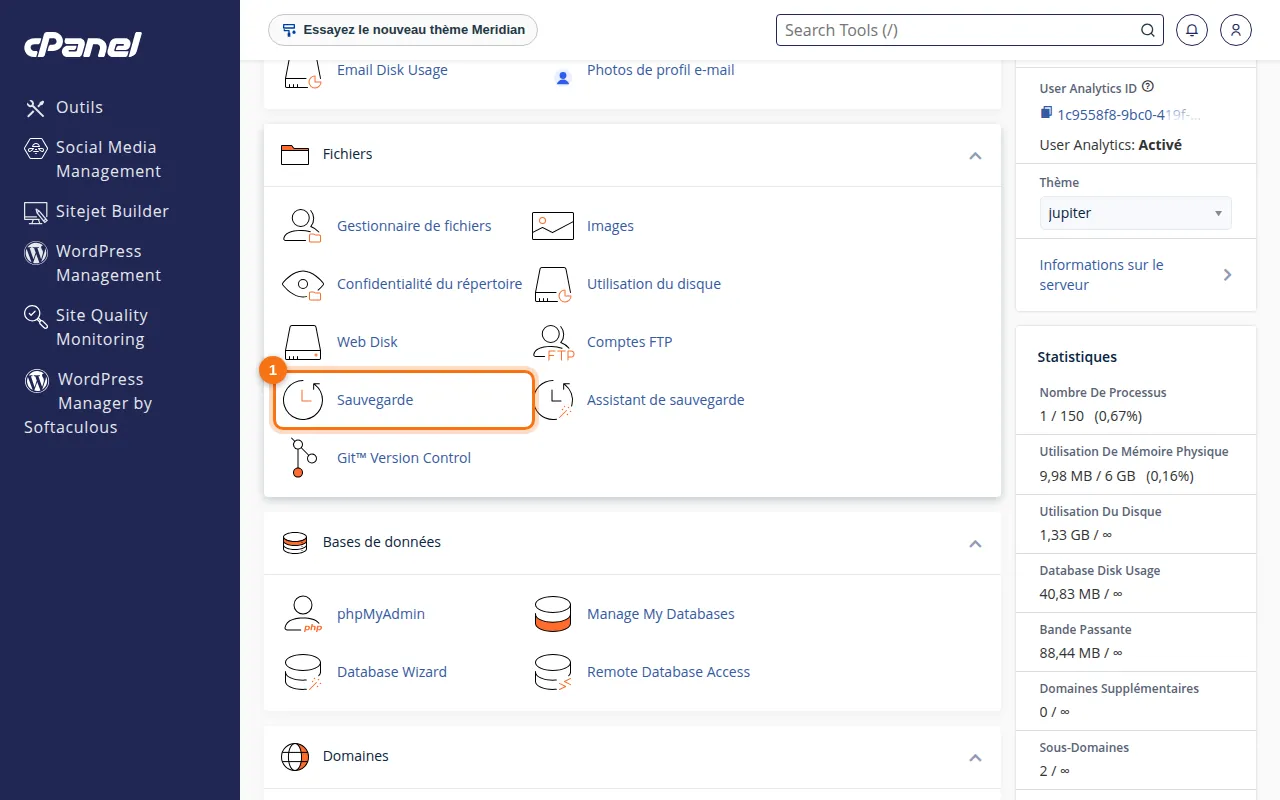 The "Backup" tool in the Files section.
Step-by-step use
- For a complete copy, click "Download a Full Account Backup" 1, choose the destination (home directory) and start the creation: you receive an email when the archive is ready.
- Under Account Backups, you can download an existing automatic backup by choosing its date.
- Under Partial Backups, click "Home Directory" or the name of a database to download only that part.
- To restore, use the "Upload" buttons next to each type of partial backup.
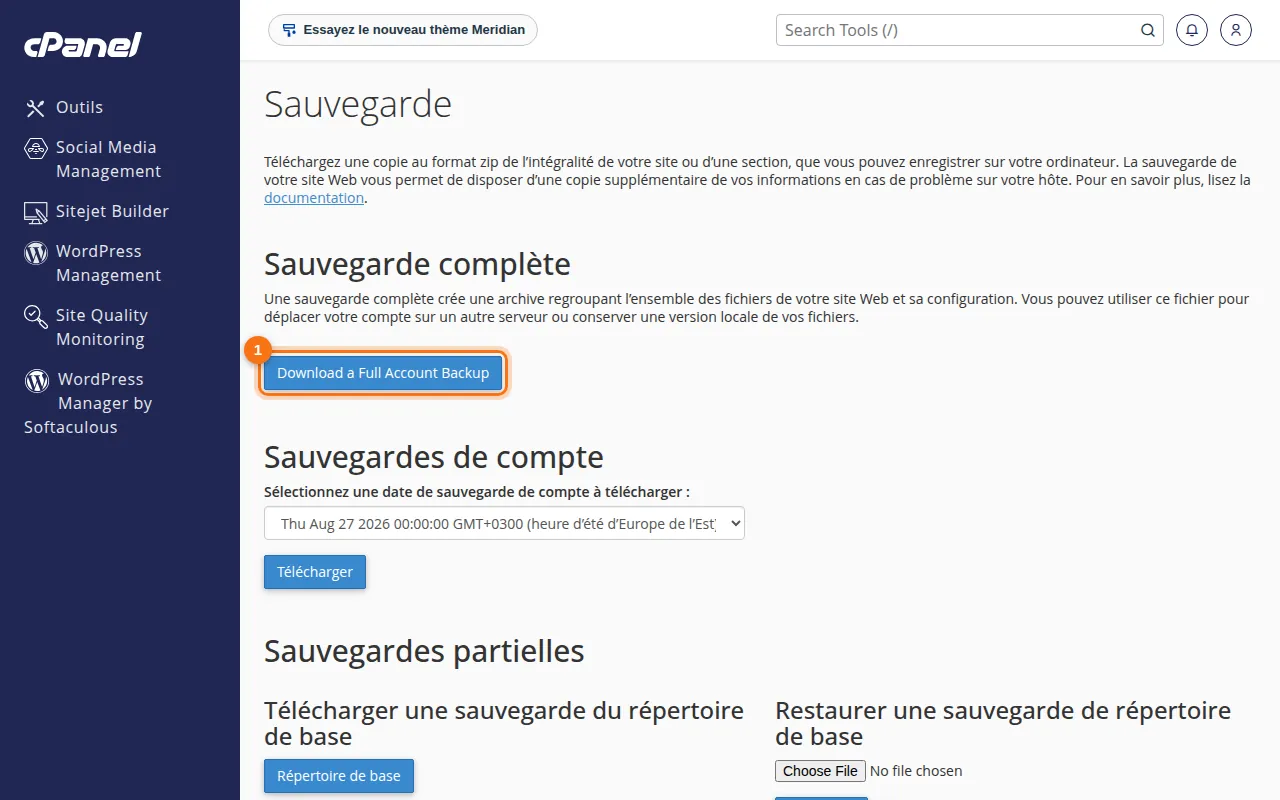 The full and partial backup options.
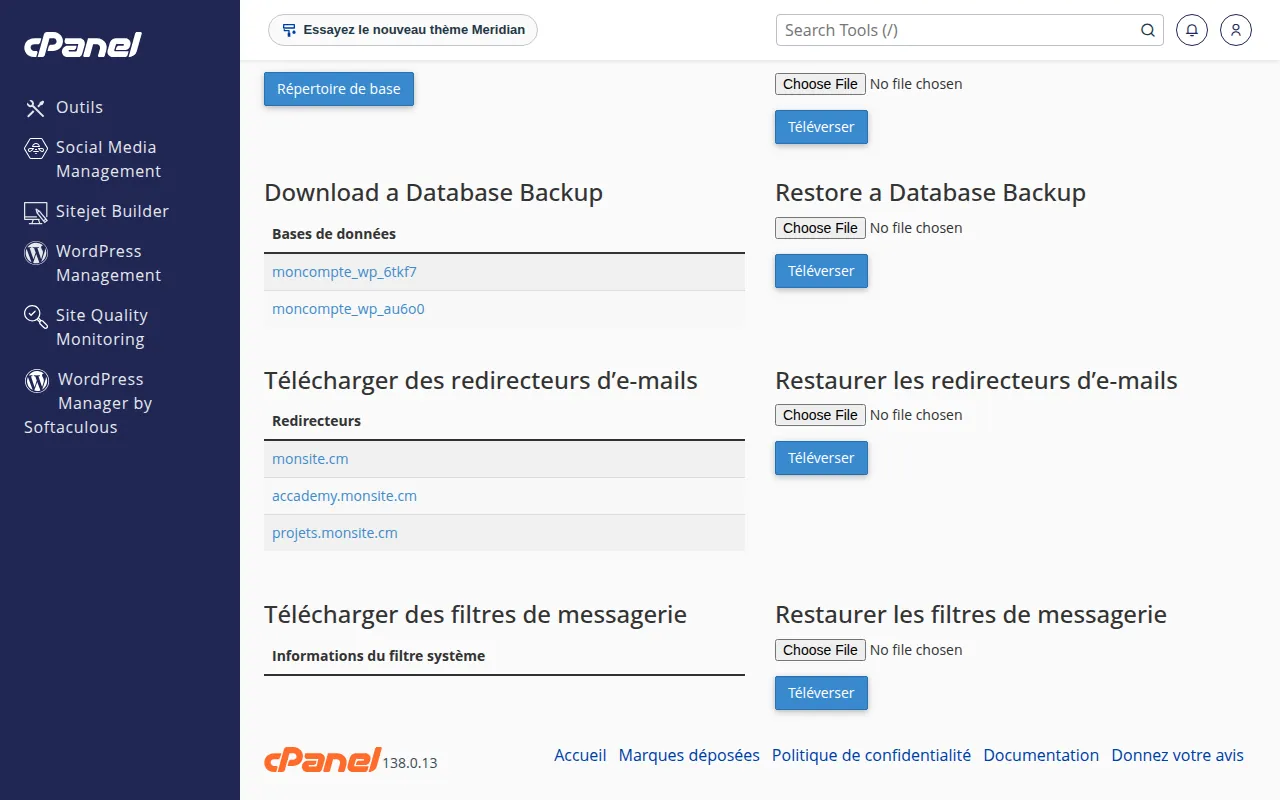 The rest of the screen: the list of existing items and their actions.
Best practices
- A full backup cannot be restored from this screen: contact support with the archive.
- Delete backup archives from your account once you have downloaded them: they use up your quota.
