
Summary: Re-import a .sql backup of your database to return to an earlier state after an error or corruption.
Prerequisites
- Access to cPanel and phpMyAdmin
- A .sql backup file of the database
Step-by-step procedure
- In cPanel, open phpMyAdmin and select the database to restore.
- First of all, export the current state (Export tab) as a safety net.
- If necessary, empty the existing tables or let the import overwrite them, depending on the contents of the .sql file.
- Open the "Import" tab, choose your .sql file and run it.
- Check the site: the data should reflect the state of the imported backup.
Visual guide
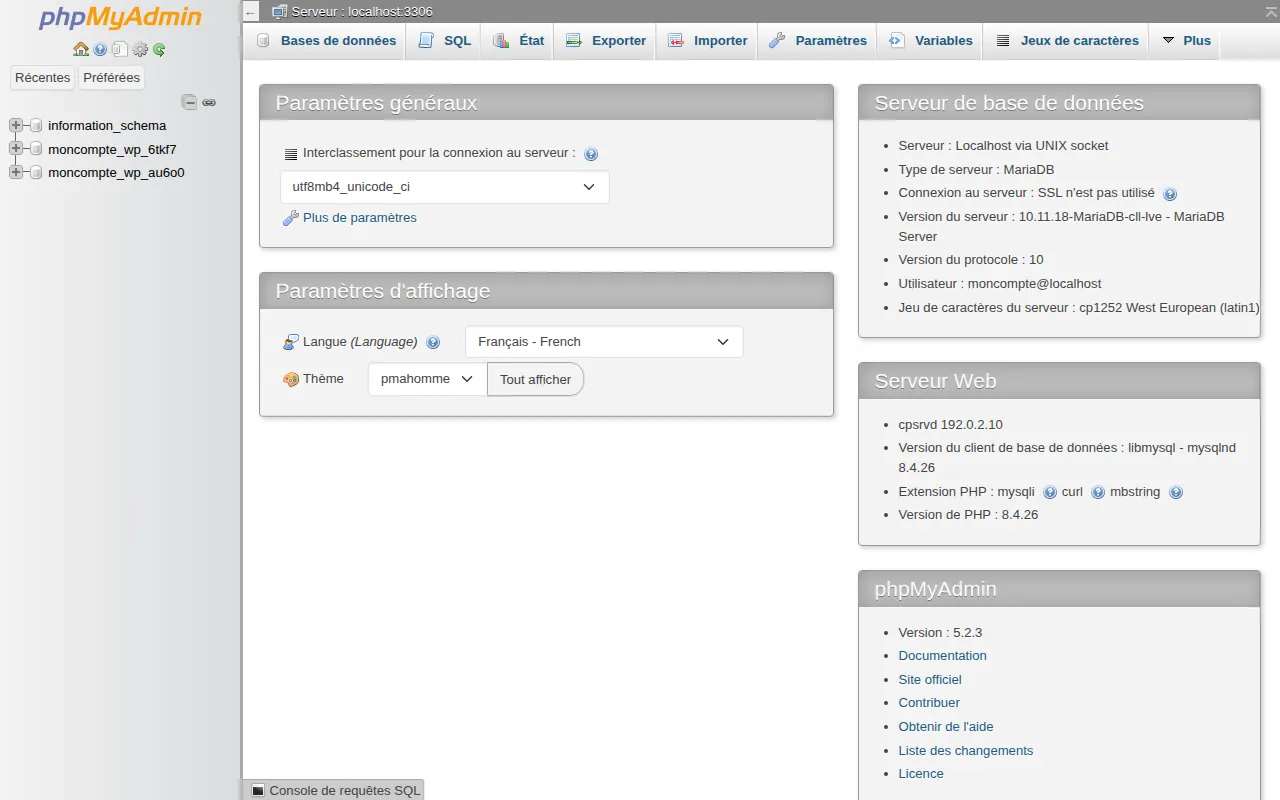 Figure 1. phpMyAdmin: select the database in the left-hand column, export it, then use the "Import" tab.
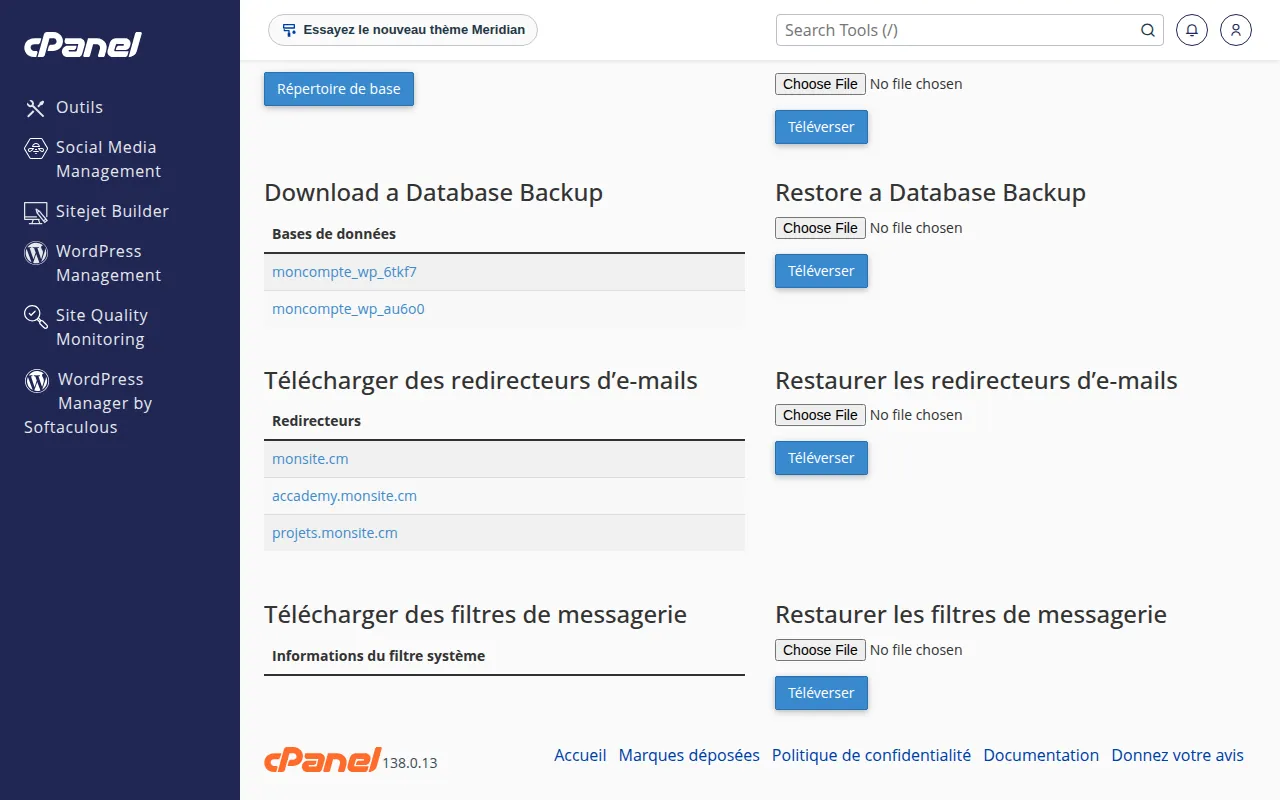 Figure 2. Alternative: cPanel → Backup → "Restore a MySQL Database Backup".
Troubleshooting
- File too large to import: compress it as .zip/.gz, or upload the file and import it with the appropriate tool.
- Encoding errors (broken accented characters): import with the correct character set, matching that of the backup.
- Table conflicts: make sure you import into the correct database and handle overwriting.
Frequently asked questions
Will I lose my current data?
The import replaces the tables concerned; hence the safety export beforehand.
How is this different from a cPanel restore?
phpMyAdmin targets the database precisely, which is ideal for WordPress and PHP applications.
See also
- Fixing the "Error establishing a database connection"
- Full manual backup of your hosting via cPanel
